Why iCloud Creates Obsidian Sync Conflicts (And How to Fix Them)
Understand the technical reasons behind iCloud duplicate files in Obsidian and learn actionable steps to resolve them.
Simon
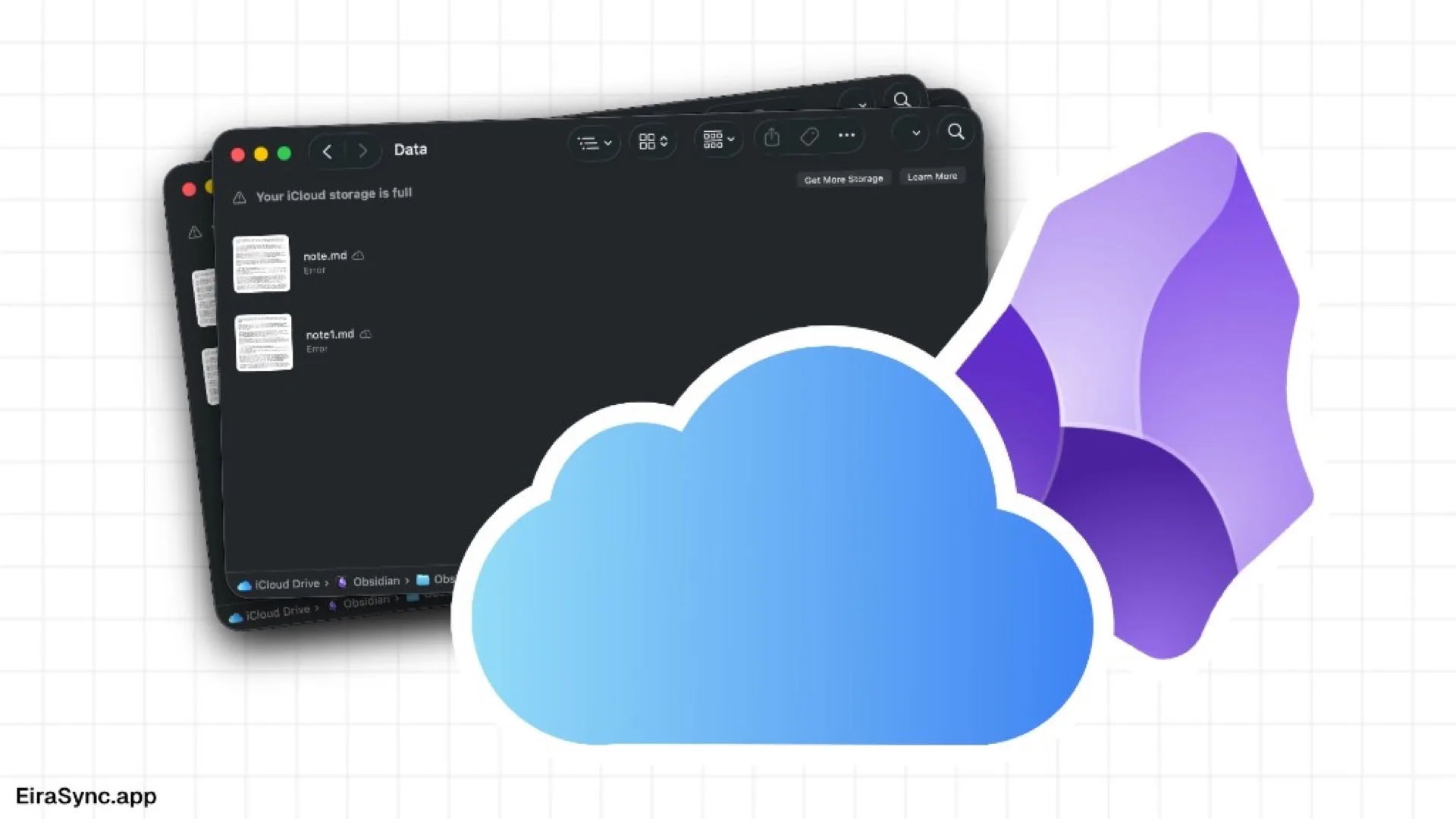
If you use Apple devices, syncing your Obsidian vault via iCloud Drive is the most logical first step. It is free, built-in, and requires zero initial setup.
However, as your vault grows or you start switching rapidly between your Mac and your iPhone, you will likely encounter a frustrating issue: sync conflicts.
Short answer: iCloud is perfectly usable for many Obsidian users. However, if you frequently edit your vault across multiple devices or while offline, you may eventually encounter duplicate files and synchronization conflicts due to the way general-purpose file synchronization works.
Suddenly, your vault is cluttered with files named Note 1.md and Note 2.md, or your carefully arranged workspace layout resets.
1. Why Obsidian Creates Duplicate Files on iCloud
The important thing to understand is that there is nothing "wrong" with iCloud. It is solving a different problem.
Services like iCloud, Dropbox, Google Drive, and OneDrive are designed to synchronize files. Obsidian, however, frequently updates both your Markdown notes and its own configuration files while you work. Those different design goals can occasionally lead to synchronization conflicts, especially when multiple devices are editing the same vault.
For a broader comparison of sync options, see our guide: How to Sync Obsidian Across Devices.
iCloud is designed as a general-purpose file synchronization service rather than a synchronization engine built specifically for applications like Obsidian that update many small files frequently. When you use iCloud for Obsidian, specific architectural clashes can occur.
2. Race Conditions When You Edit Offline
If you edit a note on your Mac while disconnected from the internet, and simultaneously open that same note on your iPhone, both devices create a localized version of the truth. When both devices reconnect, iCloud cannot automatically reconcile both versions of the file. Rather than risk overwriting data, it may preserve both copies, resulting in duplicate files.
3. iOS Background Limits Pause Uploads
Apple heavily restricts background network activity on iOS to save battery life. When you close Obsidian on your iPhone, iCloud often pauses the upload. If you then open your Mac, you are looking at outdated files. If you make a change on the Mac before the iPhone finishes uploading, the likelihood of a conflict increases significantly.
4. "Optimize Mac Storage" Keeps Files in the Cloud
macOS has a feature that automatically offloads files to the cloud to save local disk space. For some users, Optimize Mac Storage can introduce additional delays because files may need to be downloaded again before Obsidian can access them, which can temporarily stall the sync engine.
5. The Hidden .obsidian Folder Syncs Constantly
Obsidian constantly updates hidden files in the background. Every time you open a pane, resize a window, or close a tab, Obsidian writes these changes to .obsidian/workspace.json. iCloud attempts to sync these rapid micro-updates across devices, which can sometimes lead to workspace resets or conflicting configuration files across devices.
6. Is iCloud Safe for Obsidian?
Yes, iCloud is generally safe and will not maliciously delete your data. However, the frequent generation of duplicate conflict files can lead to a cluttered vault and potential data loss if you accidentally delete the correct version of a file during manual cleanup.
Regardless of your synchronization method, keep regular backups of your vault. Synchronization propagates changes—including accidental deletions—while backups allow you to recover previous versions.
7. How to Fix iCloud Conflicts Right Now
If you want to stick with iCloud, you can drastically reduce the number of conflicts by changing your setup and habits:
- Disable "Optimize Mac Storage": Go to Apple Menu > System Settings > Apple ID > iCloud. Ensure "Optimize Mac Storage" is turned off. Your Obsidian files should remain fully downloaded on your local drive at all times.
- The 10-Second Rule: Always wait 10 to 15 seconds after opening Obsidian before you start typing. This gives iCloud Drive time to pull the latest changes from the server. Similarly, leave the app open for 10 seconds after you finish typing before locking your phone.
- Force the iOS Files App: If Obsidian on your iPhone is showing old data, do not edit it. Instead, open the native iOS
Filesapp, navigate to your Obsidian vault, and wait for the cloud icons to disappear. This forces iOS to prioritize the download.
🧹 Quick Tip: How to Clean Up iCloud Duplicates on Mac
If your vault is already full of conflict files, you do not need to delete them manually one by one.
- Open your Obsidian vault in the macOS Finder.
- In the search bar (top right), type
1.mdor2.md(make sure to include the space before the number).- Click the filter option to restrict the search specifically to your vault folder, not "This Mac".
- Review the search results. If they are clearly iCloud conflict copies, select all (
Cmd + A) and delete them.- Compare the duplicate file with the original before deleting anything. Conflict copies sometimes contain newer edits.
Note: Always make a local copy of your entire vault as a backup before executing a mass deletion.
8. The Permanent Fix: Switch to Dedicated Obsidian Sync
Workarounds require constant mental effort. The most reliable way to fix this permanently is to switch from a generic file-based sync engine to a dedicated synchronization system.
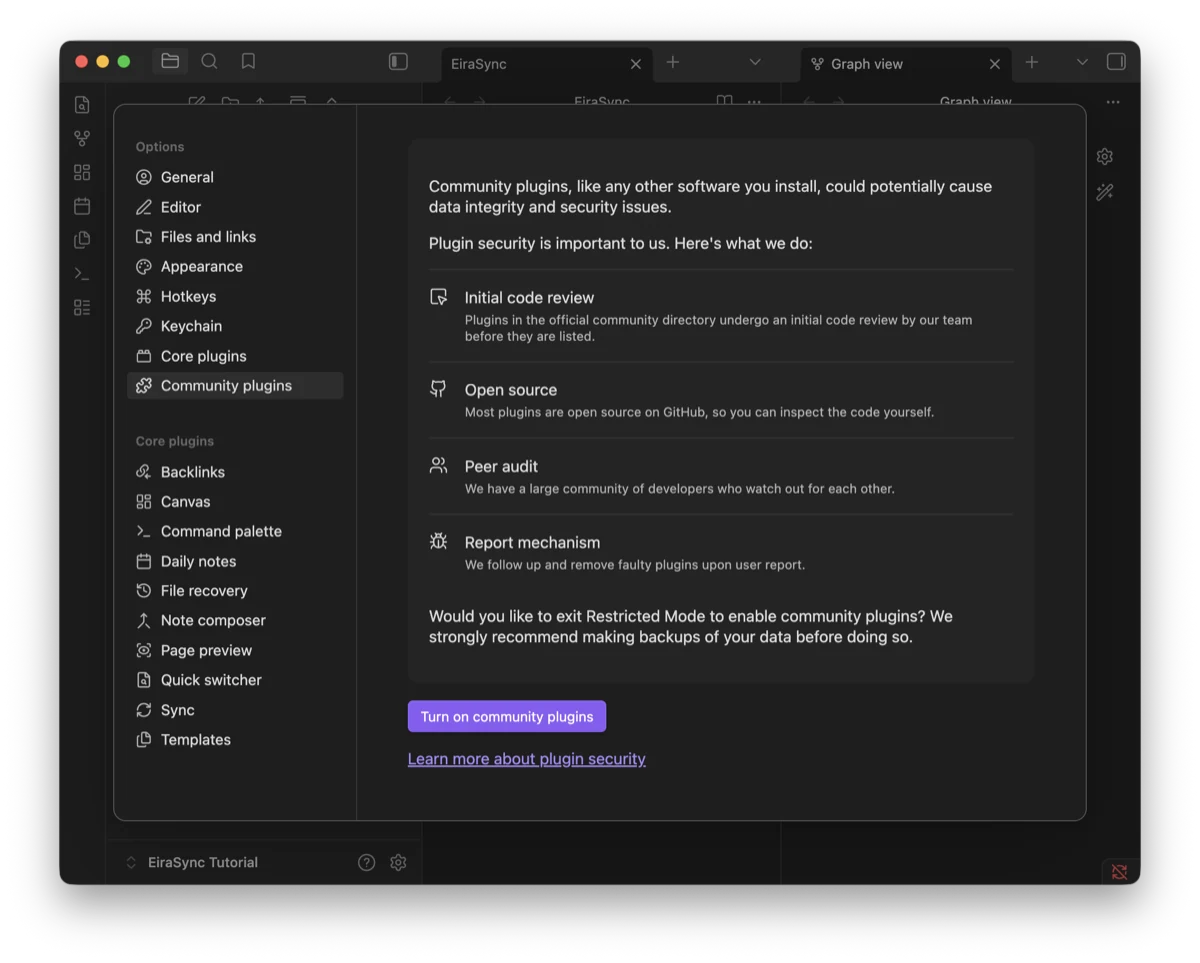
Dedicated synchronization systems typically track changes at a finer level than generic file synchronization and include conflict-resolution strategies that greatly reduce the likelihood of duplicate files. The exact implementation varies between products. LiveSync, for example, builds on CouchDB's replication model together with the plugin's synchronization logic to reduce many of the situations that commonly lead to file conflicts.
If you are tired of managing conflicts, you have three robust alternatives:
- Obsidian Sync: The official synchronization service, designed specifically for Obsidian with end-to-end encryption, version history, and seamless integration across supported platforms.
- Self-Hosted LiveSync: A community-built plugin that uses CouchDB to provide fast, near real-time synchronization.
- EiraSync: Provides a managed CouchDB backend for the LiveSync plugin, so you can use the LiveSync workflow without operating your own server.
The same principles apply not only to iCloud, but also to other general-purpose file synchronization services such as Dropbox, OneDrive, and Google Drive. While each platform behaves differently, they all synchronize files rather than understanding Obsidian's internal state.
There is no universal "best" synchronization method. For occasional note-taking, iCloud may be all you need. If your vault becomes an essential part of your daily work, choosing a synchronization solution designed specifically for Obsidian can save you a lot of frustration over time. Read the full breakdown in our sync methods comparison.
If you like the LiveSync approach but don't want to maintain your own CouchDB server, you can try EiraSync free for 14 days.